
page.modules.verticalMenu.empty

Image de récupération officielle Surface Laptop Go 2 BMR_42032 Win11 Famille (21H1-25H2)

page.article.header.datePublished
1
Surface Laptop Go 2 BMR_42032

Surface Laptop Go 2 BMR_42032

page.article.audio.unlock

Image de récupération officielle de Surface Laptop Go 2 BMR_42032

Image de récupération d’usine (BMR) d’origine Microsoft, sous Windows 11 Famille, couvrant toutes les versions historiques de 21H1 à 25H2.
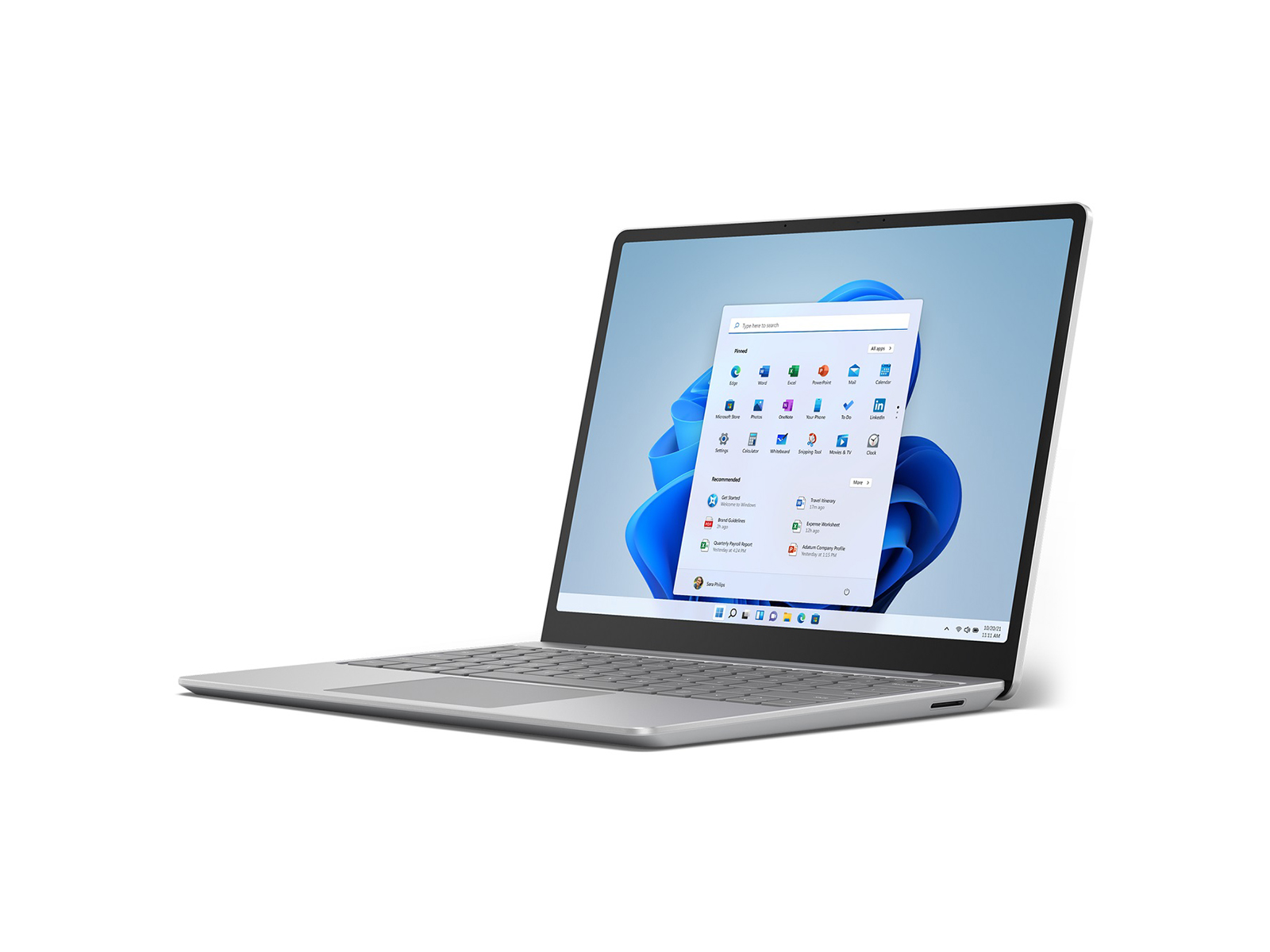
Modèle:SurfaceLaptopGo2+BMR_42032 Version:21H1 – 25H2
Surface Laptop Go 2

Liste des fichiers image (nom de fichier / configuration correspondante)

Toutes les versions ci-dessous proviennent du site officiel de Microsoft. Un fichier peut convenir à plusieurs configurations ; la livraison s’effectue via un dossier de disque cloud après achat, veuillez télécharger selon la correspondance ci-dessous.

SurfaceLaptopGo2_BMR_42032_5.533.1.zip
21H1
  • Surface Laptop Go 2 i5/8/128 – Windows 11 Home Version 21H1
  • Surface Laptop Go 2 Demo – Windows 11 Home Version 21H1
SurfaceLaptopGo2_BMR_42032_5.534.3.zip
22H2
  • Surface Laptop Go 2 i5/8/128 – Windows 11 Home Version 22H2
  • Surface Laptop Go 2 Demo – Windows 11 Home Version 22H2
SurfaceLaptopGo2_BMR_42032_2024.507.161.zip
23H2
  • Surface Laptop Go 2 i5/8/128 – Windows 11 Home Version 23H2
  • Surface Laptop Go 2 Demo – Windows 11 Home Version 23H2
SurfaceLaptopGo2_BMR_42032_2026.507.11898505.zip
25H2 NEW
  • Surface Laptop Go 2 i5/8/128 – Windows 11 Home Version 25H2
  • Surface Laptop Go 2 Demo – Windows 11 Home Version 25H2
SurfaceLaptopGo2_BMR_42032_2024.926.9209285.zip
24H2
  • Surface Laptop Go 2 i5/8/128 – Windows 11 Home Version 24H2
SurfaceLaptopGo2_BMR_42032_2024.1209.9376961.zip
24H2
  • Surface Laptop Go 2 i5/8/128 – Windows 11 Home Version 24H2
SurfaceLaptopGo2_BMR_42032_2025.609.10358140.zip
24H2
  • Surface Laptop Go 2 i5/8/128 – Windows 11 Home Version 24H2
SurfaceLaptopGo2_BMR_42032_2025.823.10858225.zip
24H2
  • Surface Laptop Go 2 i5/8/128 – Windows 11 Home Version 24H2
SurfaceLaptopGo2_BMR_42032_2025.1210.11426026.zip
25H2
  • Surface Laptop Go 2 i5/8/128 – Windows 11 Home Version 25H2
SurfaceLaptopGo2_BMR_42032_2026.715.12200295.zip
25H2 NEW
  • Surface Laptop Go 2 i5/8/128 – Windows 11 Home Version 25H2
Téléchargement de l’image de récupération officielle Surface Laptop Go 2 BMR_42032, Windows 11 Famille, 21H1 – 25H2. SurfaceLaptopGo2_BMR_42032_5.533.1.zip;Surface Laptop Go 2 i5/8/128 – Windows 11 Home Version 21H1;Surface Laptop Go 2 Demo – Windows 11 Home Version 21H1。 SurfaceLaptopGo2_BMR_42032_5.534.3.zip;Surface Laptop Go 2 i5/8/128 – Windows 11 Home Version 22H2;Surface Laptop Go 2 Demo – Windows 11 Home Version 22H2。 SurfaceLaptopGo2_BMR_42032_2024.507.161.zip;Surface Laptop Go 2 i5/8/128 – Windows 11 Home Version 23H2;Surface Laptop Go 2 Demo – Windows 11 Home Version 23H2。 SurfaceLaptopGo2_BMR_42032_2026.507.11898505.zip;Surface Laptop Go 2 i5/8/128 – Windows 11 Home Version 25H2;Surface Laptop Go 2 Demo – Windows 11 Home Version 25H2。 SurfaceLaptopGo2_BMR_42032_2024.926.9209285.zip;Surface Laptop Go 2 i5/8/128 – Windows 11 Home Version 24H2。 SurfaceLaptopGo2_BMR_42032_2024.1209.9376961.zip;Surface Laptop Go 2 i5/8/128 – Windows 11 Home Version 24H2。 SurfaceLaptopGo2_BMR_42032_2025.609.10358140.zip;Surface Laptop Go 2 i5/8/128 – Windows 11 Home Version 24H2。 SurfaceLaptopGo2_BMR_42032_2025.823.10858225.zip;Surface Laptop Go 2 i5/8/128 – Windows 11 Home Version 24H2。 SurfaceLaptopGo2_BMR_42032_2025.1210.11426026.zip;Surface Laptop Go 2 i5/8/128 – Windows 11 Home Version 25H2。 SurfaceLaptopGo2_BMR_42032_2026.715.12200295.zip;Surface Laptop Go 2 i5/8/128 – Windows 11 Home Version 25H2。

Guide de récupération du système

Voici les étapes officielles simplifiées de Microsoft. Avant l’opération, vérifiez que le matériel est en bon état et prévoyez une clé USB de 16 Go minimum (formatée en FAT32).

  1. Assurez-vous que la Surface est éteinte et branchée sur secteur, puis insérez la clé de récupération USB préparée (16 Go minimum recommandé, formatée en FAT32).
  2. Maintenez enfoncée la touche « Volume – », tout en appuyant puis relâchant le bouton d’alimentation.
  3. Relâchez la touche « Volume – » lorsque le logo Microsoft ou Surface apparaît.
  4. Sélectionnez la langue et la disposition du clavier selon les invites.
  5. Sélectionnez « Dépannage » > « Récupérer à partir d’un lecteur ».
  6. Choisissez « Supprimer uniquement mes fichiers » ou « Nettoyer entièrement le lecteur » (cette dernière option est plus complète mais plus longue).
  7. Sélectionnez « Récupérer » ; la Surface redémarrera automatiquement et terminera la réinitialisation, ce qui prend quelques minutes.

Besoin d’aide ?

Pour le téléchargement de l’image, la récupération ou si vous ne trouvez pas la version correspondante, contactez-nous : nous proposons une assistance payante avec des forfaits satisfaisants.

QQ:3326686660 WeChat:Service en ligne WhatsApp:+86 15187650007 Telegram:@euwebstudio E-mail:euweb@foxmail.com
0 / 600
common.comment.commentCount
common.comment.orderby.hotcommon.comment.orderby.newest
common.comment.summary.title
common.comment.summary.empty