
Surface Laptop 13-inch (1st Edition) BMR_12010 Official Recovery Image
Microsoft factory recovery image (BMR) running Windows 11 Home, covering all historical versions from 24H2 to 25H2.
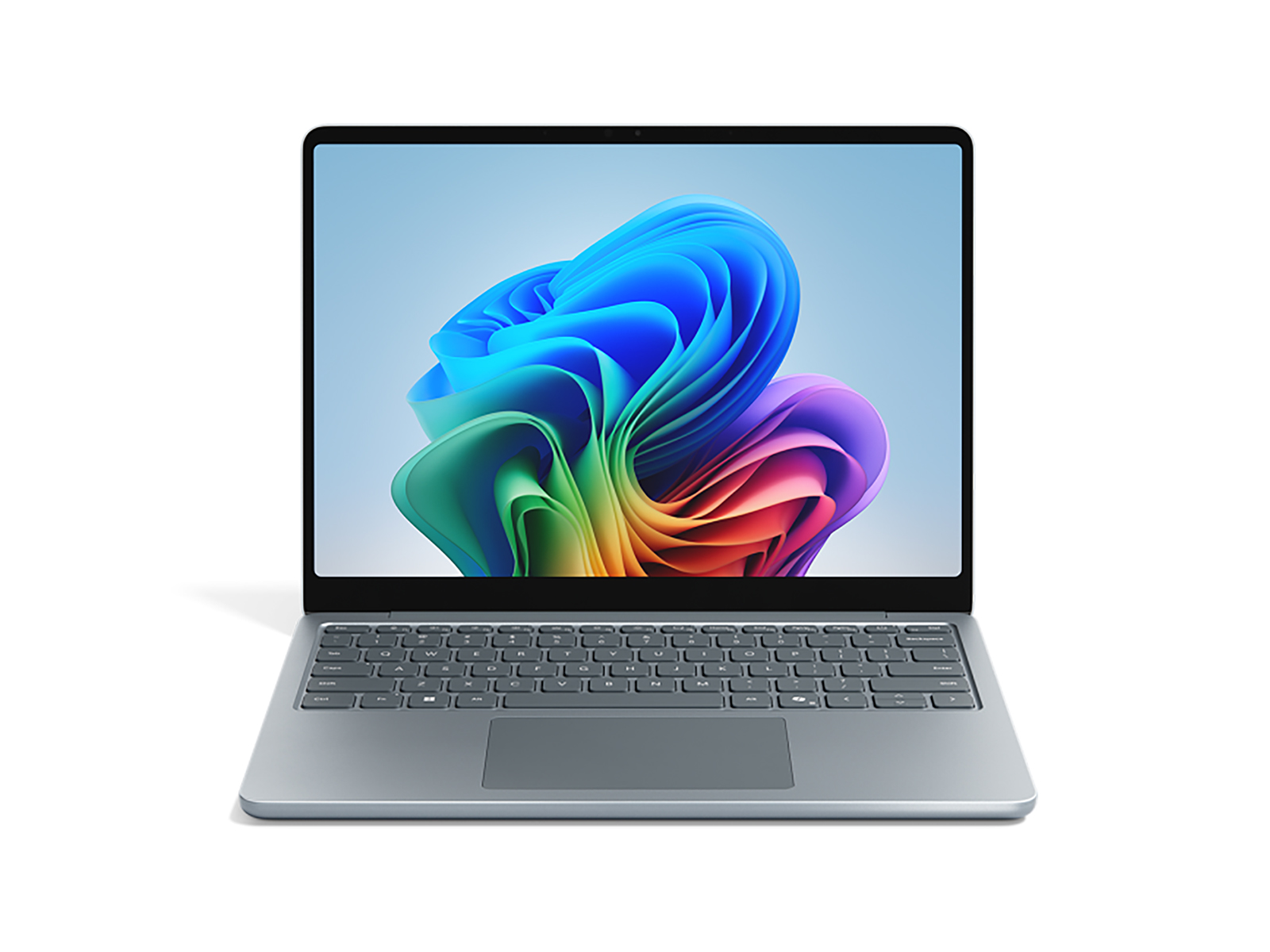
Image File List (File Name / Configuration Reference)
All files below are original versions from the Microsoft official website. One file can apply to multiple configurations; delivery is via cloud-drive folder after purchase, please download according to the reference below.
SurfaceLaptop13in1stEdwithSnapdragon_BMR_12010_2025.403.10995389.zip
24H2
- Sfc Lp 13in Snpdrgn 1stEd P/16/512 – Windows 11 Home Version 24H2
SurfaceLaptop13in1stEdwithSnapdragon_BMR_12010_2026.127.11629989.zip
25H2
- Sfc Lp 13in Snpdrgn 1stEd P/16/512 – Windows 11 Home Version 25H2
SurfaceLaptop13in1stEdwithSnapdragon_BMR_12010_2026.804.12395961.zip
25H2 NEW
- Sfc Lp 13in Snpdrgn 1stEd P/16/512 – Windows 11 Home Version 25H2
Surface Laptop 13-inch (1st Edition) BMR_12010 official recovery image download, Windows 11 Home, 24H2 – 25H2.
SurfaceLaptop13in1stEdwithSnapdragon_BMR_12010_2025.403.10995389.zip;Sfc Lp 13in Snpdrgn 1stEd P/16/512 – Windows 11 Home Version 24H2。
SurfaceLaptop13in1stEdwithSnapdragon_BMR_12010_2026.127.11629989.zip;Sfc Lp 13in Snpdrgn 1stEd P/16/512 – Windows 11 Home Version 25H2。
SurfaceLaptop13in1stEdwithSnapdragon_BMR_12010_2026.804.12395961.zip;Sfc Lp 13in Snpdrgn 1stEd P/16/512 – Windows 11 Home Version 25H2。
System Recovery Instructions
The following are the brief official Microsoft steps. Before you begin, make sure the device hardware works properly, and prepare a USB drive of 16GB or more (formatted as FAT32).
- Make sure the Surface is powered off and connected to power, then insert the prepared USB recovery drive (16GB or larger, formatted as FAT32).
- Press and hold the volume-down button, then press and release the power button.
- Release the volume-down button when you see the Microsoft or Surface logo.
- Select language and keyboard layout as prompted.
- Select Troubleshoot > Recover from a drive.
- Choose “Just remove my files” or “Fully clean the drive” (the latter is more thorough but takes longer).
- Select Recover; the Surface will restart automatically and complete the reset, which takes a few minutes.
Need Help?
If you have trouble downloading the image, performing the recovery, or finding the right version, feel free to contact us. Paid assistance is available with satisfying service packages.
QQ:3326686660
WeChat:Online support
WhatsApp:+86 15187650007
Telegram:@euwebstudio
Email:euweb@foxmail.com